Let me explain each option step by step.
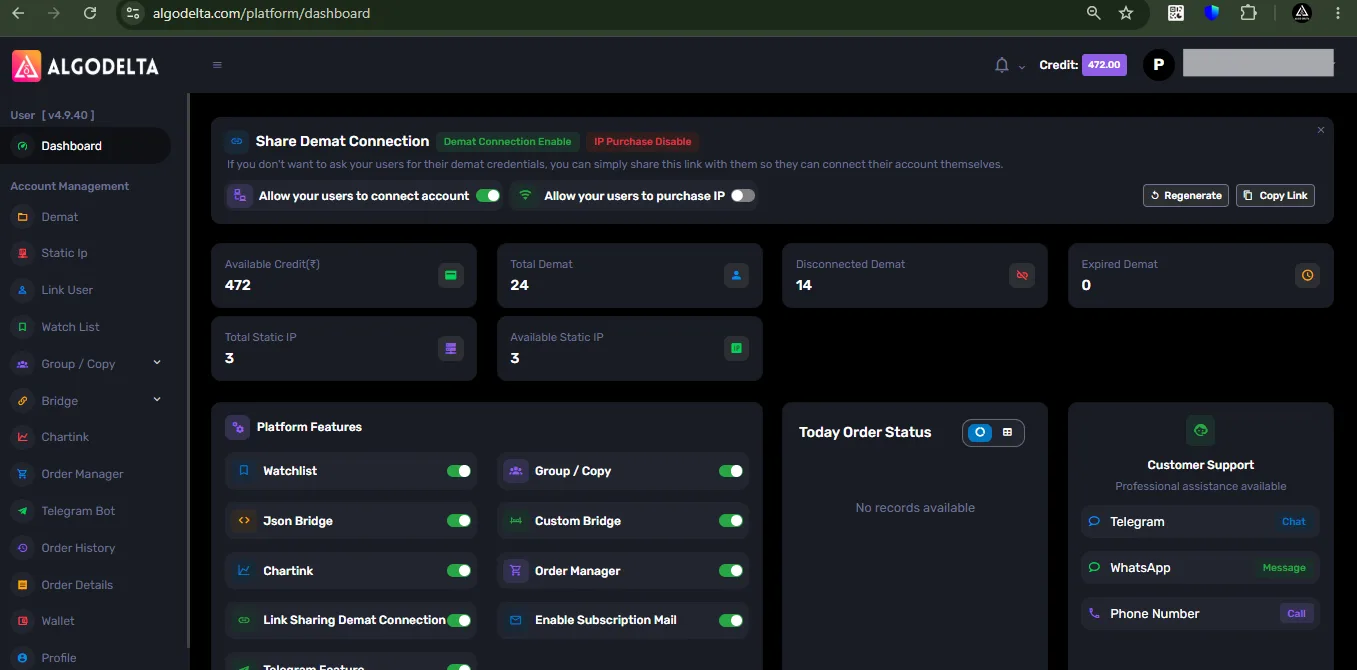
Dashboard: In the Dashboard section, you can view basic details such as available credits, total account count, expired Demat accounts, and today’s order status. You can also enable or disable any feature according to your requirements.
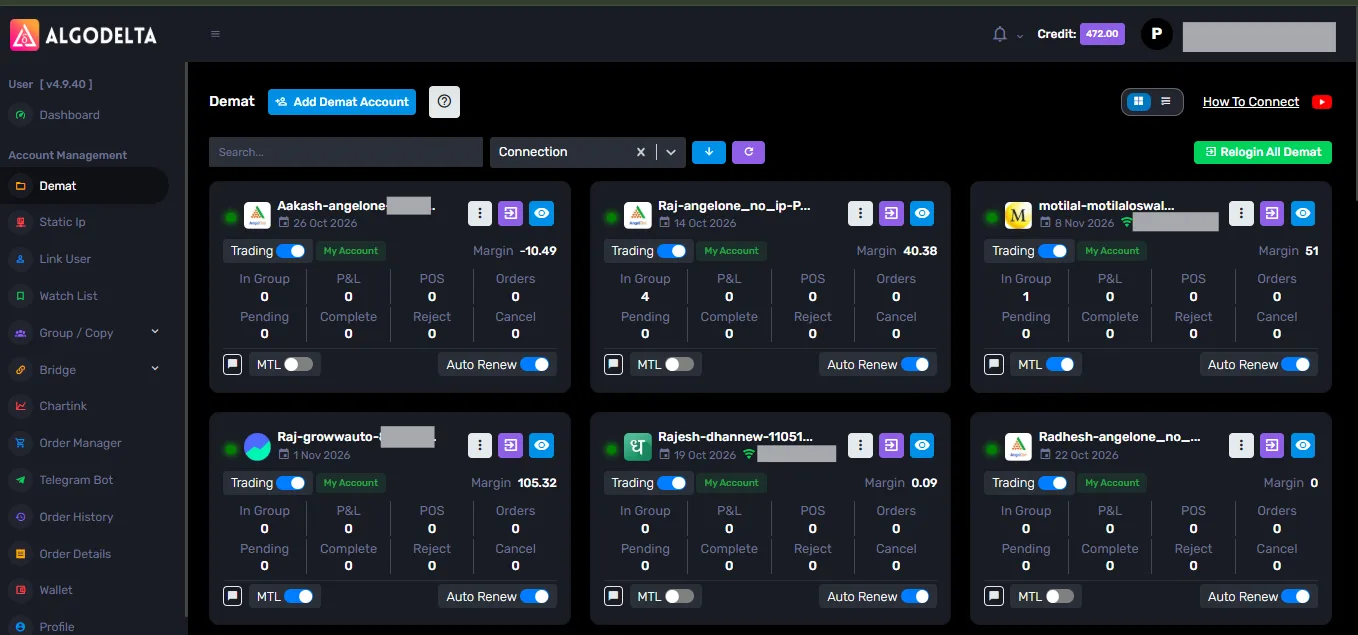
Demat: In the Demat section, you can add your broker accounts and view account details such as P&L, rejected order count, cancelled order count, available margin, pending order count, and open position count.
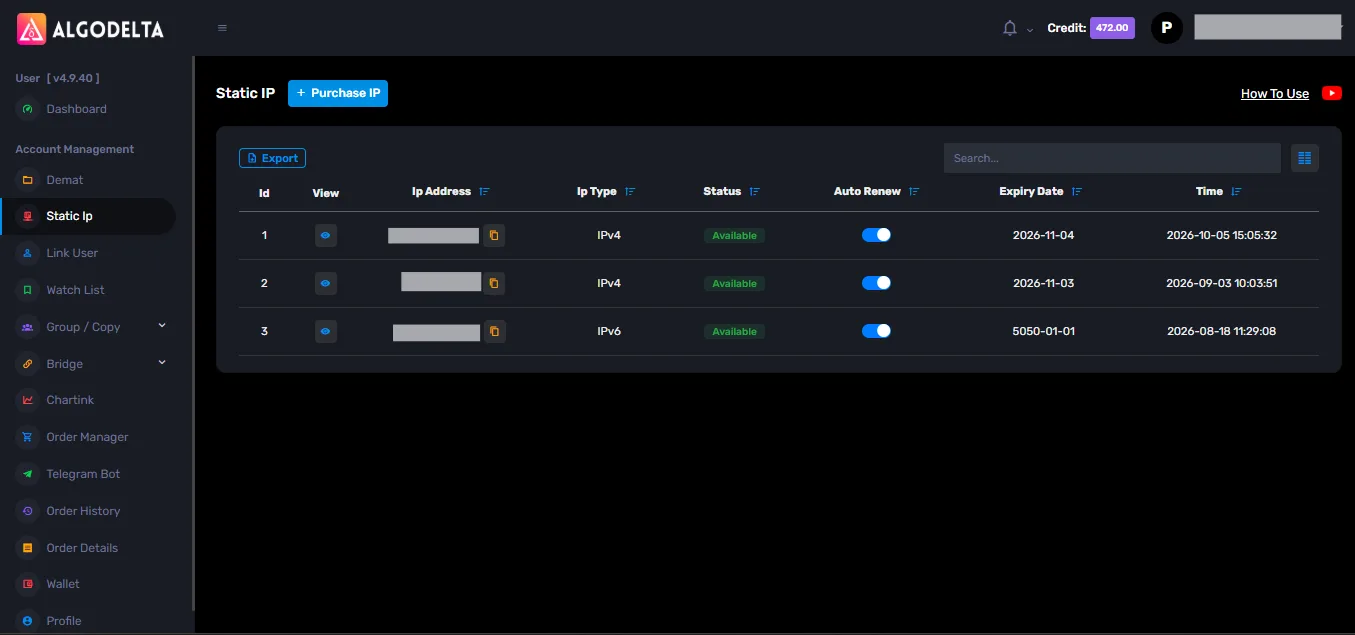
Static IP: From the Static IP tab, you can purchase a static IP and configure the same IP at your broker’s end. A static IP is required for API-based trading under applicable SEBI regulations.
Link User : https://community.algodelta.com/q/131/what-is-link-sharin…
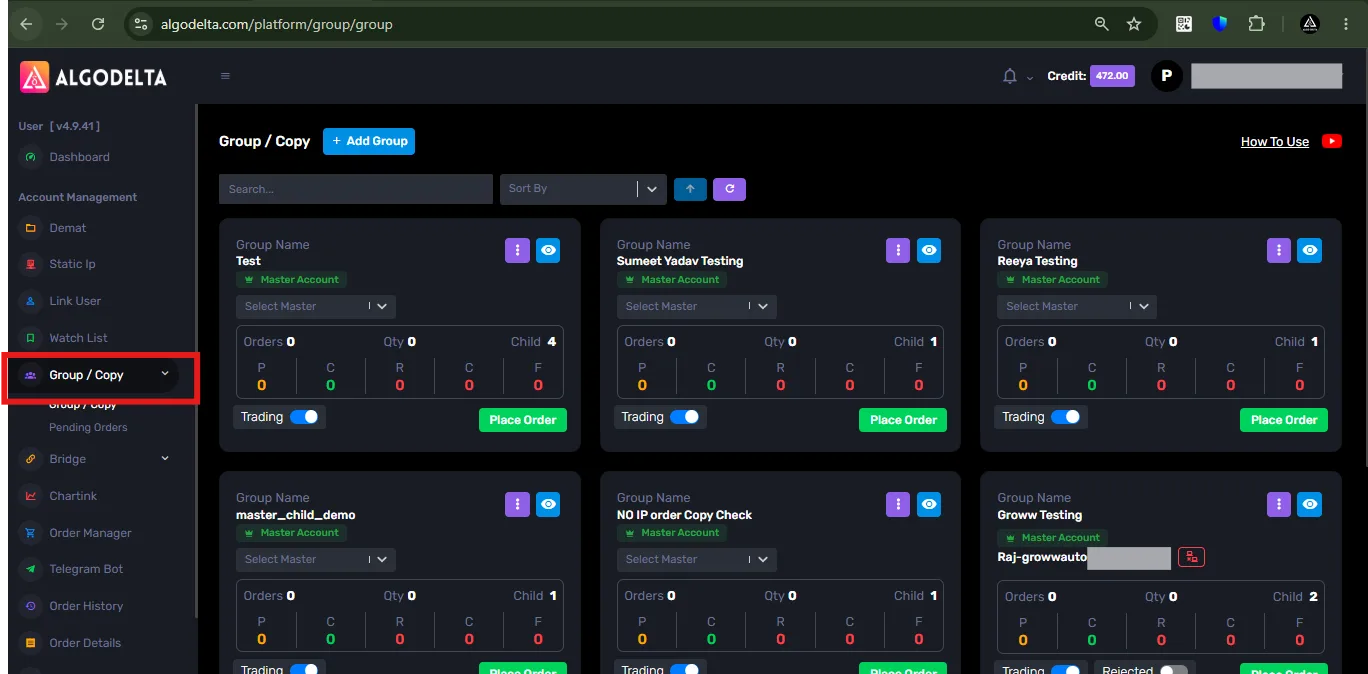
Group / Copy : Group/Copy is designed for multi-account management. Suppose you are a group of people trading in multiple accounts using the same or different strategies, or you are an individual trading across multiple accounts. Using this tab, you can create multiple master-child account pairs for free. This is also the section where you can configure your master and child accounts.
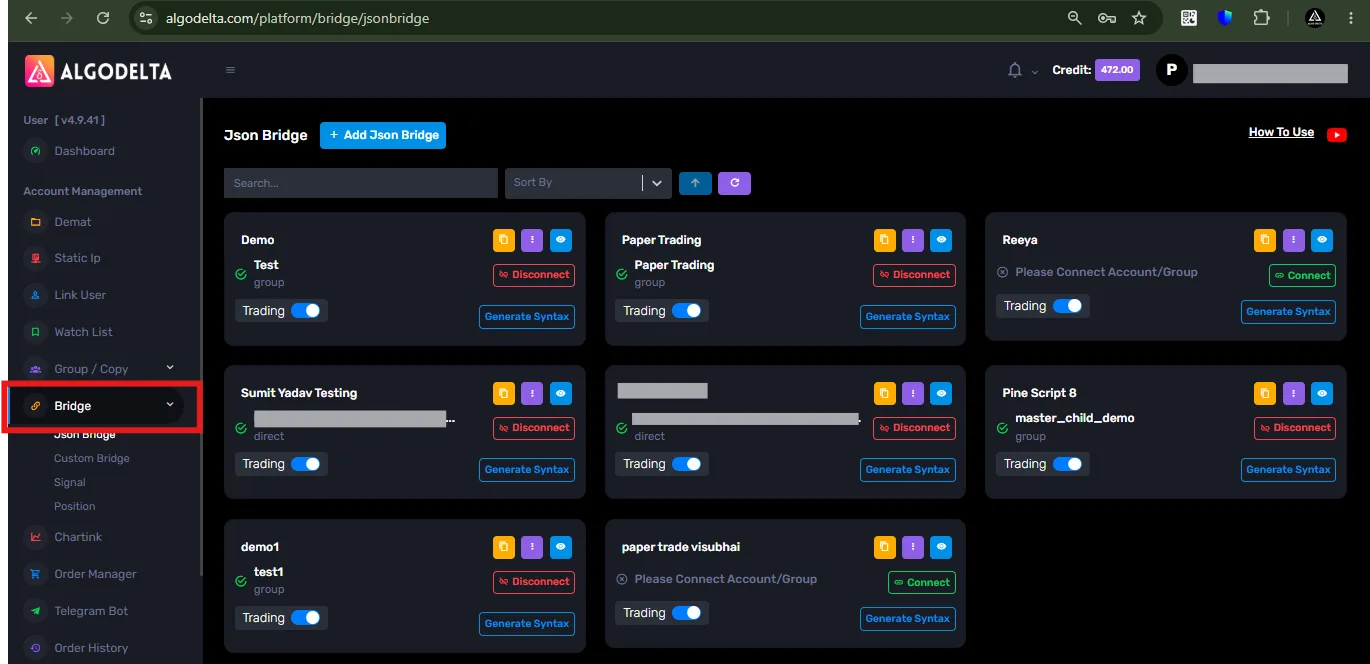
Bridge: Using the Bridge tab, you can connect TradingView strategies and indicators to multiple accounts. You can also connect MT4/MT5 and AmiBroker using the Bridge feature.
Chartink: Using the Chartink tab, you can connect any Chartink scanner to multiple accounts. You can also set default values and configure settings for your selected stocks.
Order Manager : https://www.youtube.com/watch?v=UKA6pBFUWLg&t=1s
Telegram : https://www.youtube.com/watch?v=AJ4HWORhbdw
Order History / Order Details: Using Order History, you can check the status of all orders placed through the Group tab and individual orders.
In Order Details, you can view all orders placed through the software.
Wallet: From the Wallet section, you can add credits and view all your transaction details.
Profile: From the Profile section, you can add or update your basic details, such as your name, phone number, email address, city, and state.