Yes, you can definitely do that with the Json bridge
Just follow these steps:
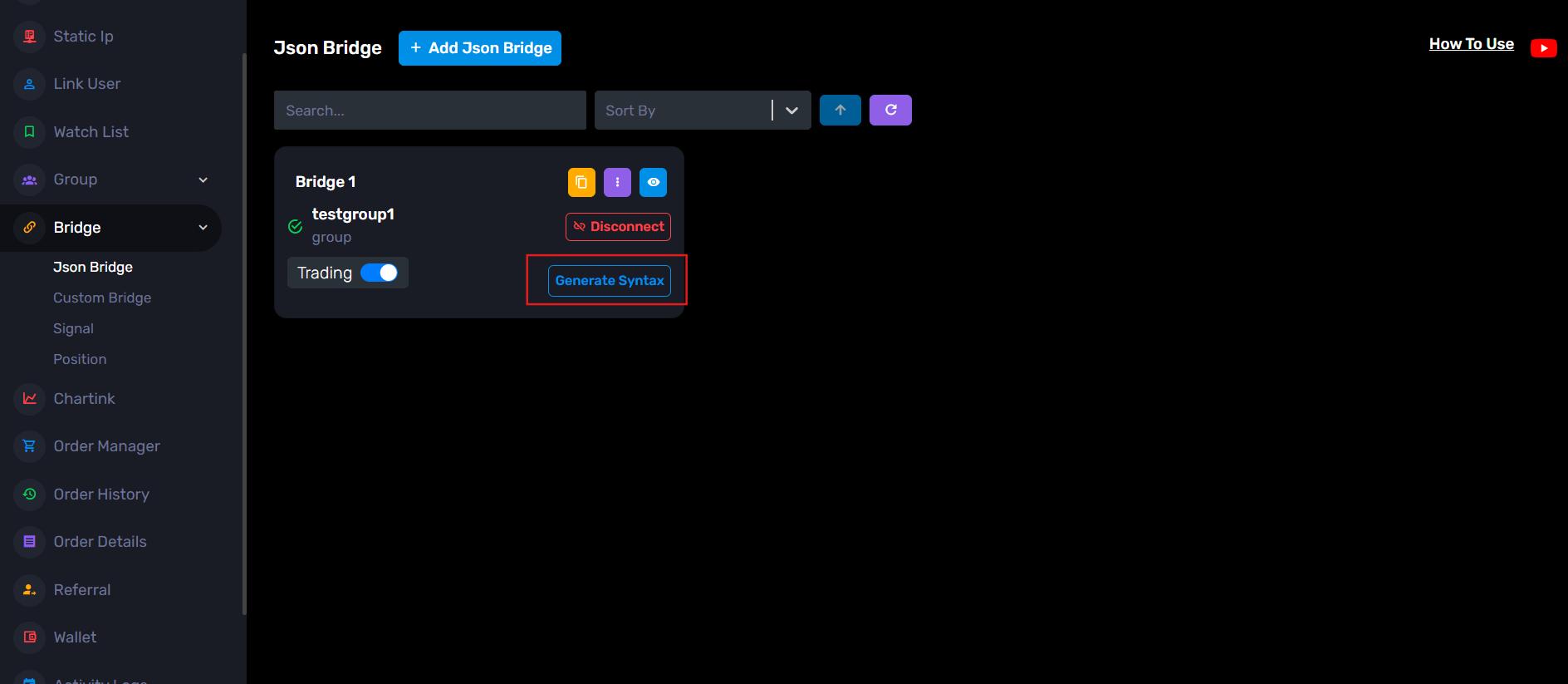
Step 1: Go to the JSON Bridge page and click: Generate Syntax
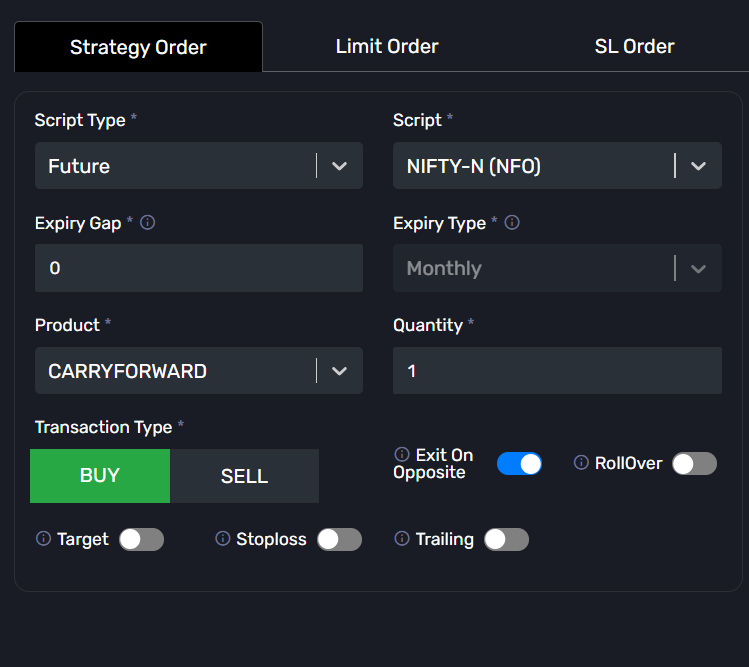
Step 2: Configure your trade settings.
Example:
- Order Type: Strategy Order
- Script Type: Future
- Symbol: NIFTY-N (NFO)
- Expiry Gap: 0
- Product: Carry Forward
- Quantity: 1
- Transaction Type: Buy / Sell
You can also configure optional settings like:
- Exit on Opposite
- Stop Loss
- Target
- Rollover
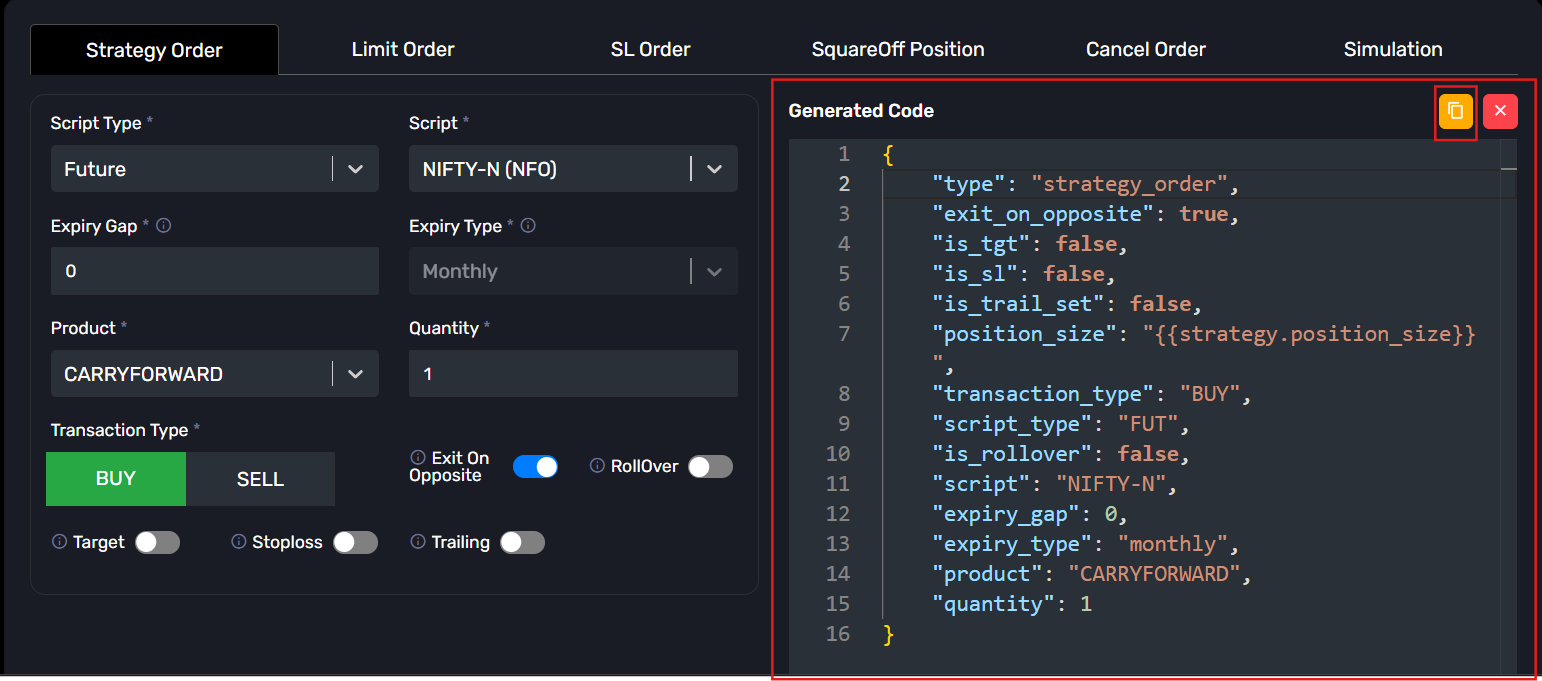
Step 3: After filling the details, the JSON will be generated automatically on the right side.
Copy that JSON.
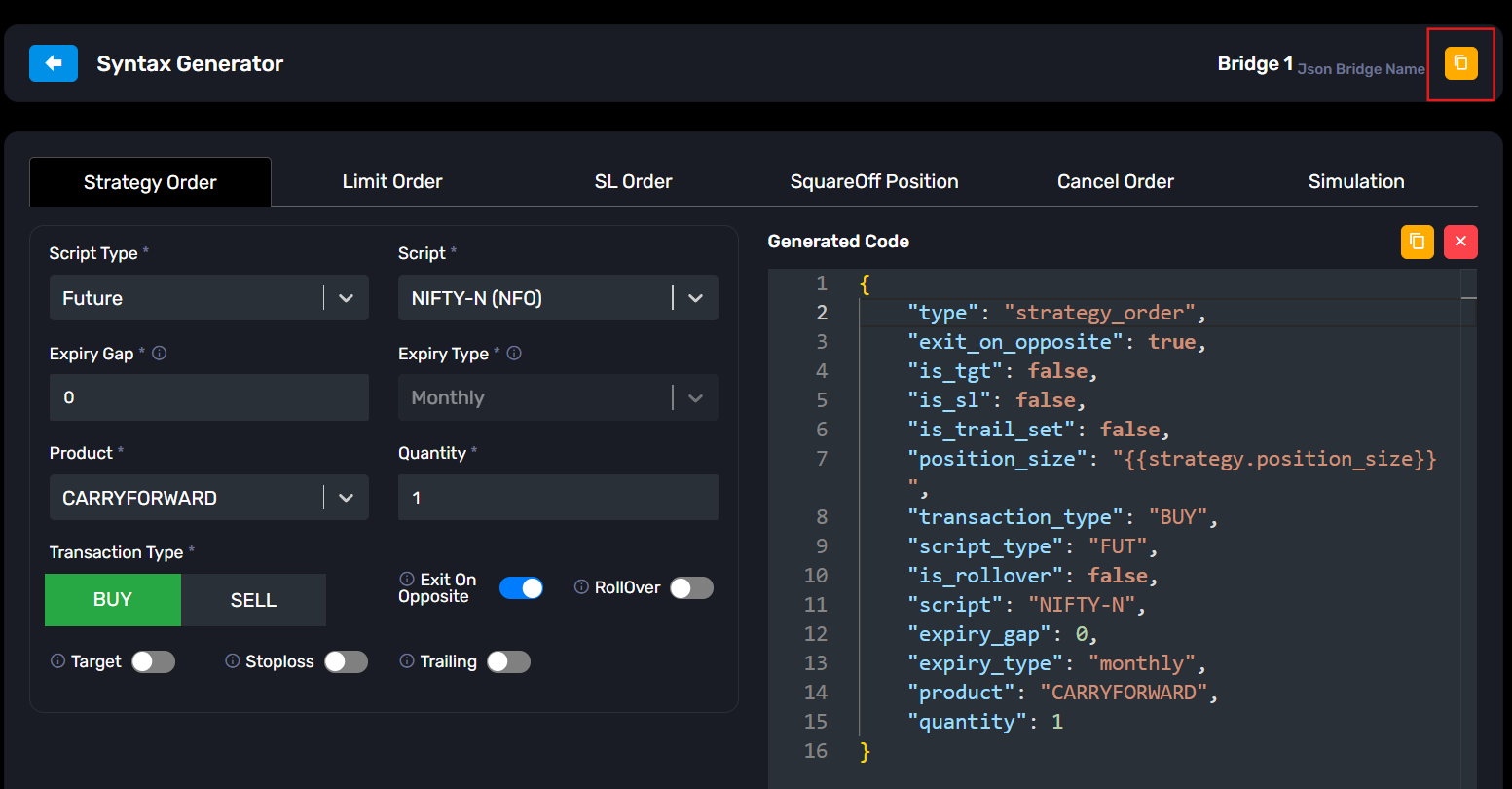
Step 4: Now copy the webhook URL from the yellow copy icon available in the JSON Bridge.
Step 5: Open TradingView and apply your strategy on the chart.
Then create a new Alert.
In the Condition dropdown, select your strategy.
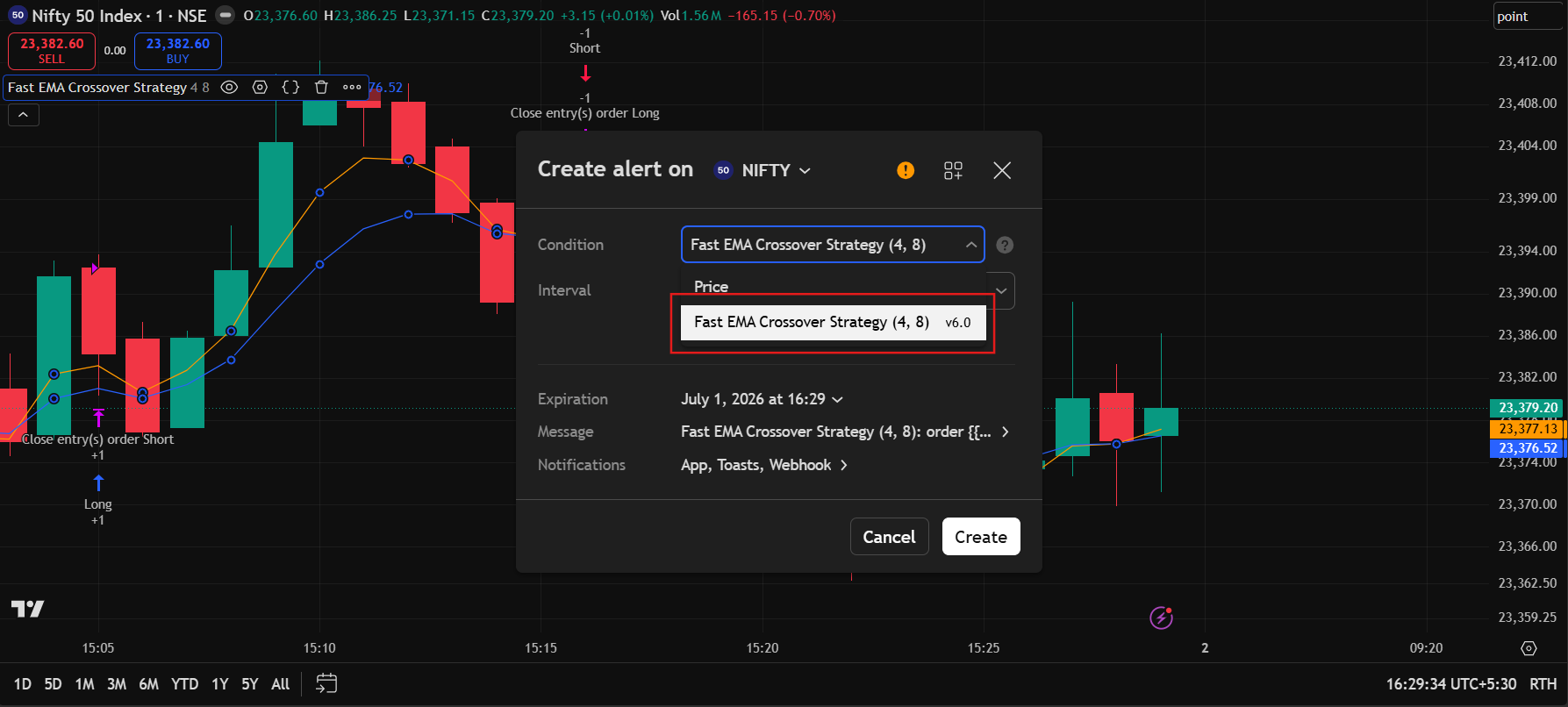
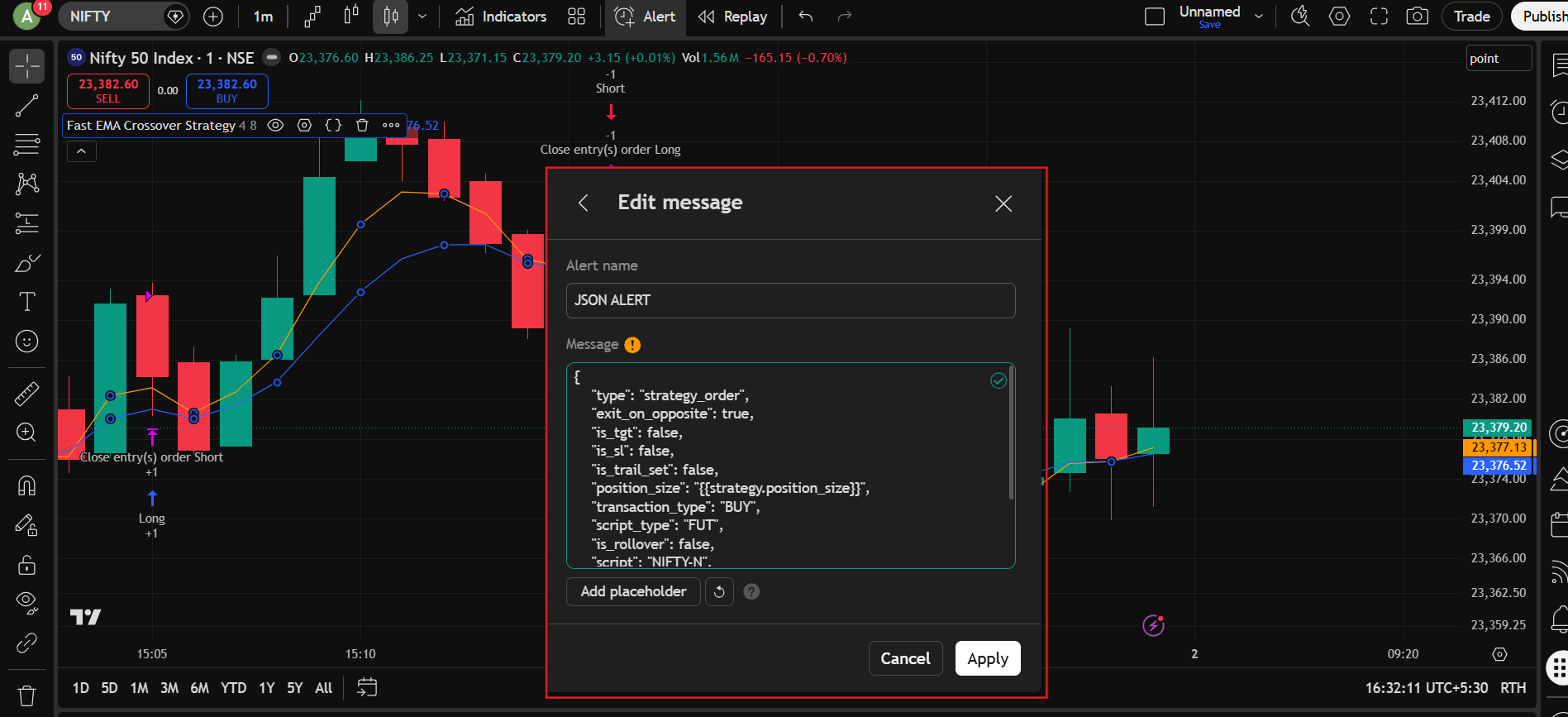
Step 6: Go to the message section:
Give any alert name, for example: JSON ALERT
Now paste the copied JSON into the Message section.
Click Apply.
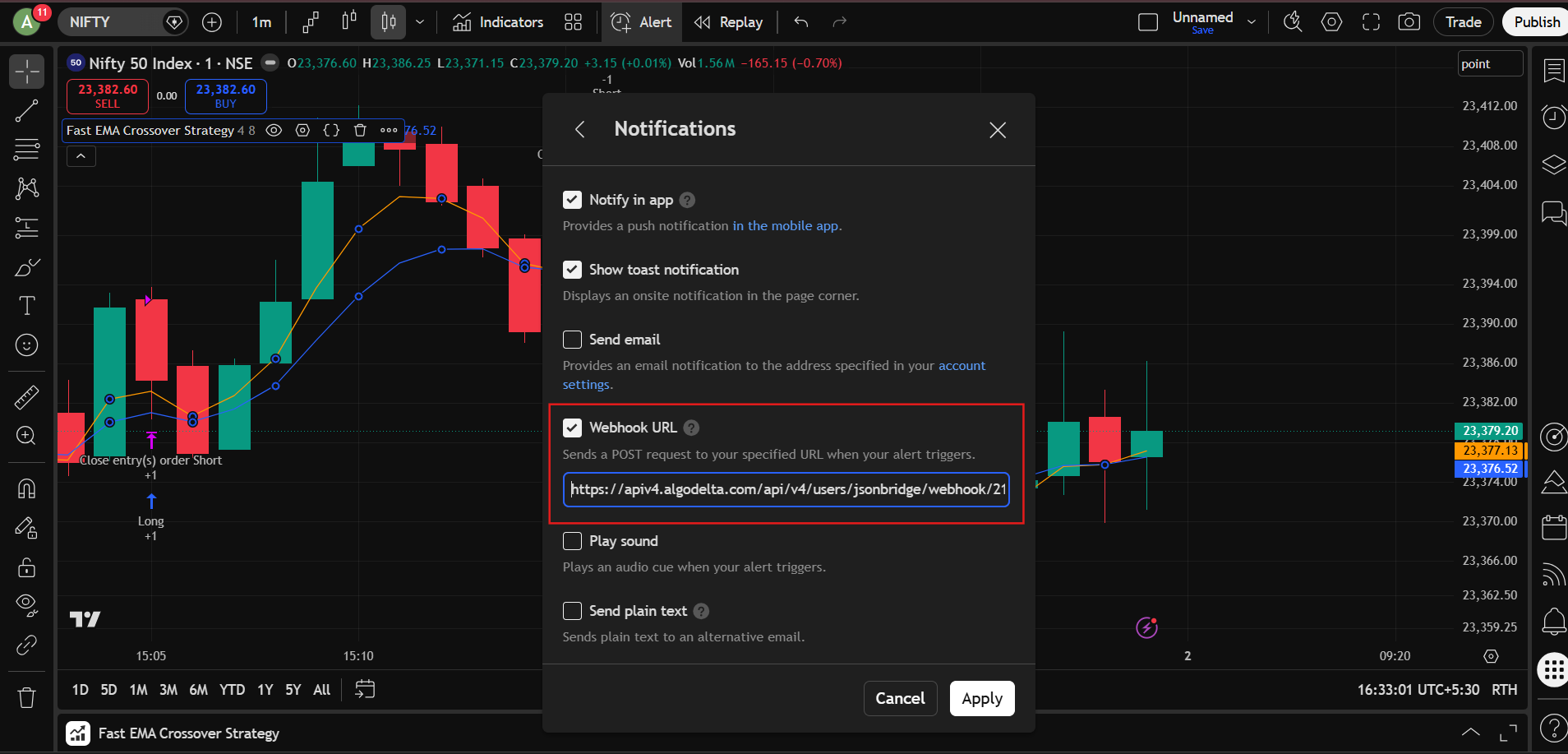
Step 7: Go to the Notifications section.
- Enable Webhook URL
- Paste the webhook URL copied from the JSON Bridge
Then click Apply.
That’s it.
Now whenever:
BUY signal comes from your strategy -> Nifty Future BUY order will be placed.
SELL signal comes from your strategy -> Nifty Future SELL order will be placed.