βœ–

Home Forums Trading view How to connect a custom bridge with a TradingView indicator?

How to connect a custom bridge with a TradingView indicator?

  • Author
    Posts
    • πŸ“ Question Details

      I connected my custom bridge and configured the upside/downside execution properly.

      But now I want to connect a TradingView indicator instead of a strategy.

      I’m getting confused about:

      • What should I select while creating alerts
      • What alert message should I send
      • How UP/DOWN execution works with indicators

      How can I properly connect the indicator with the bridge?

      • This topic was modified 4 days ago by comadmin
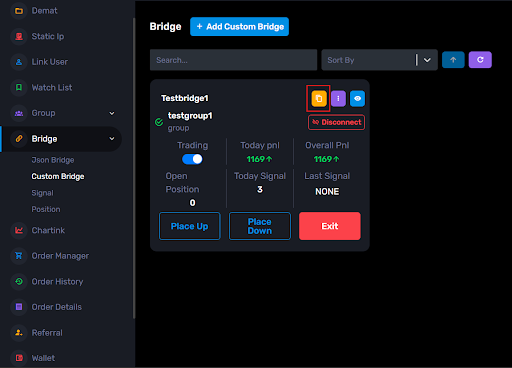
    • Step 1 : In the Custom Bridge page, click the yellow copy icon on the custom bridge page and also you can find the inside bridge at the upper right corner.

      You will get the webhook URL copied.

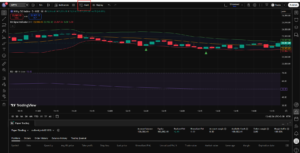
      Step 2 : Now go to TradingView and open your strategy chart.

      Step 3 : Click on the Alerts icon (clock icon).

    • Yeah, indicator setup is slightly different from strategy setup.

      In this you have to set the 2 alerts one for the Upside and the other for the DOWNSIDE execution.

      Just follow these steps:

      Step 1: Go to your Custom Bridge page and click the yellow copy icon and copy the webhook URL.
      Step 2: Now open TradingView and apply your indicator on the chart.

      Step 3: Click on Alerts (clock icon).
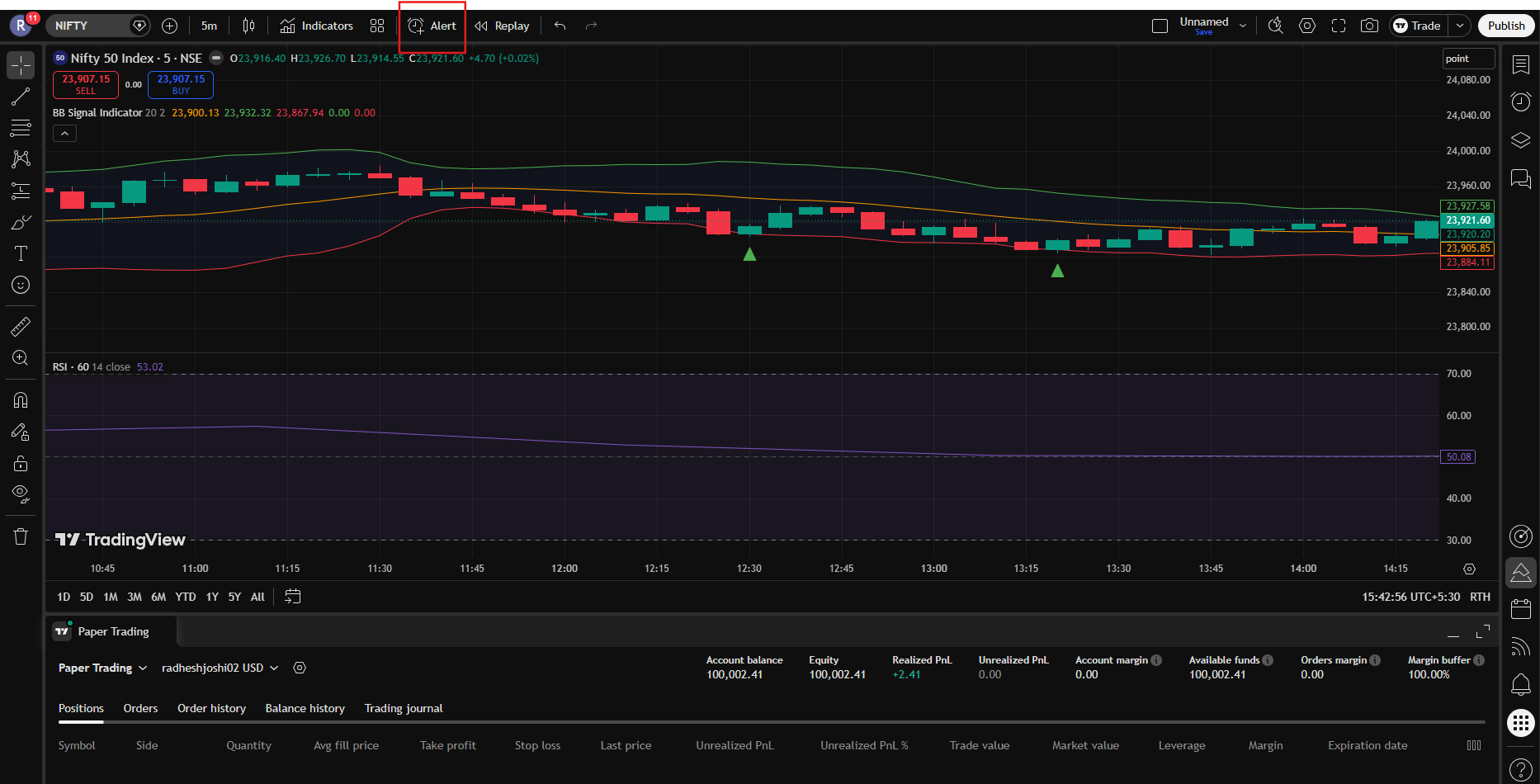
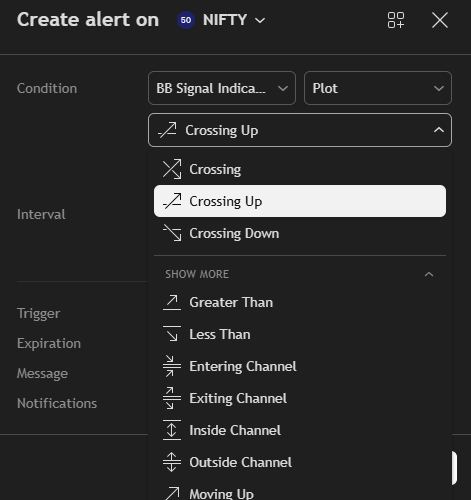
      Step 4: In Condition dropdown, select your indicator.
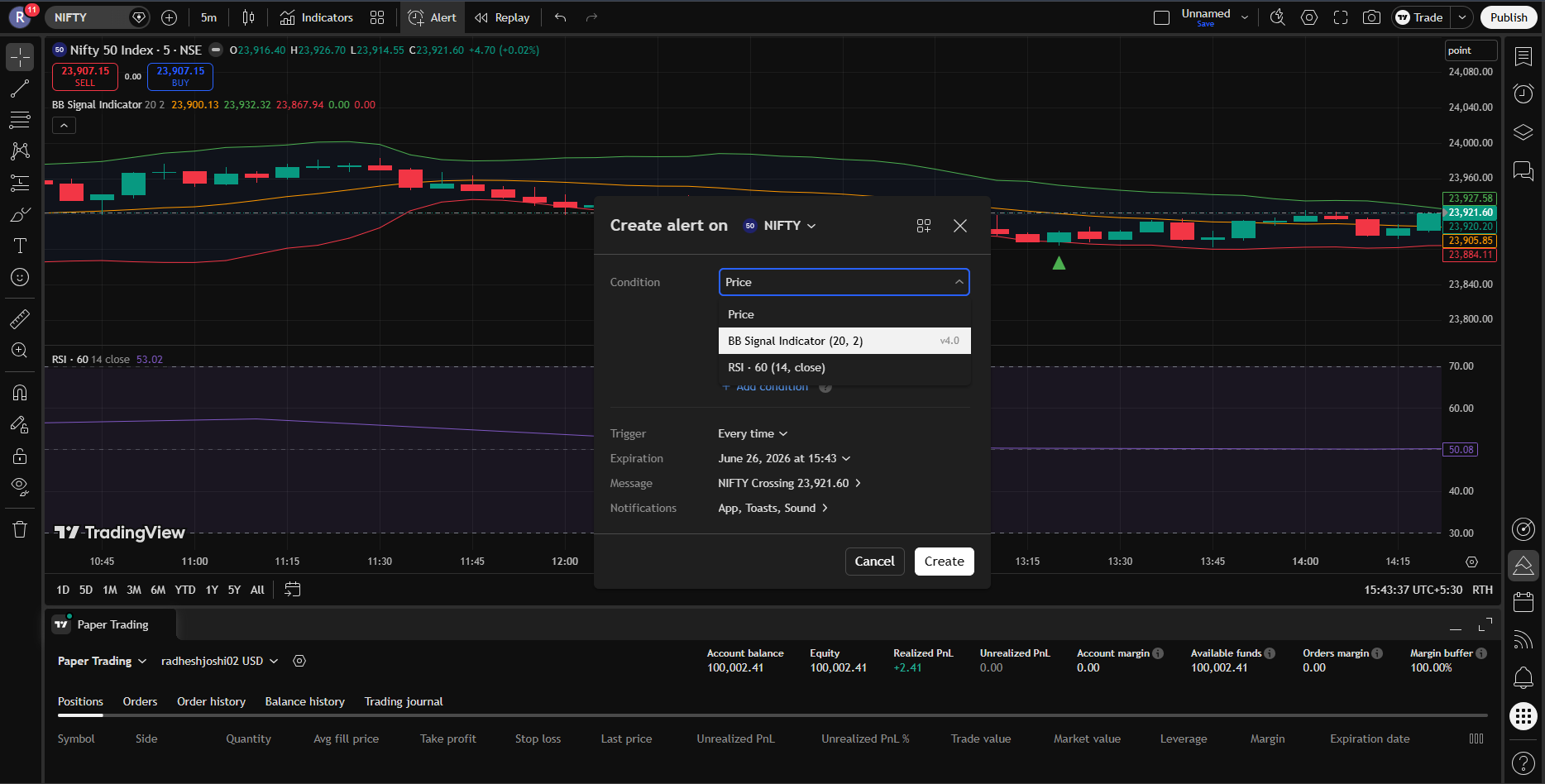
      Step 5: Now in the Crossing dropdown, select -> β€œCrossing Up” for the UP-alert setup.

      And select β€œCrossing Down” for the DOWN alert setup
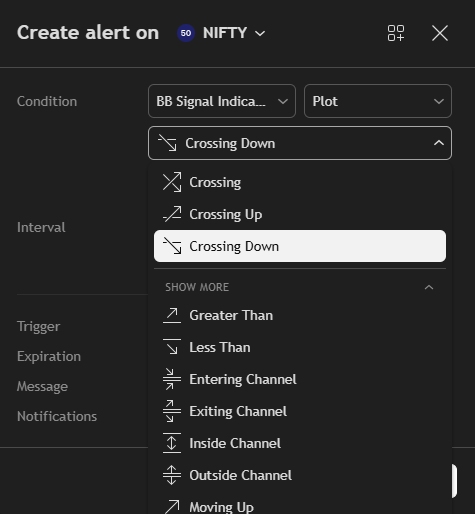
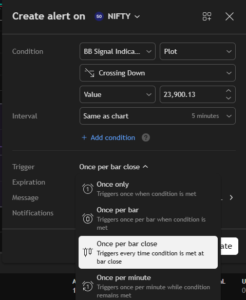
      Step 6: In the Trigger option, you can select anything you want. But we suggest: Once Per Bar Close.
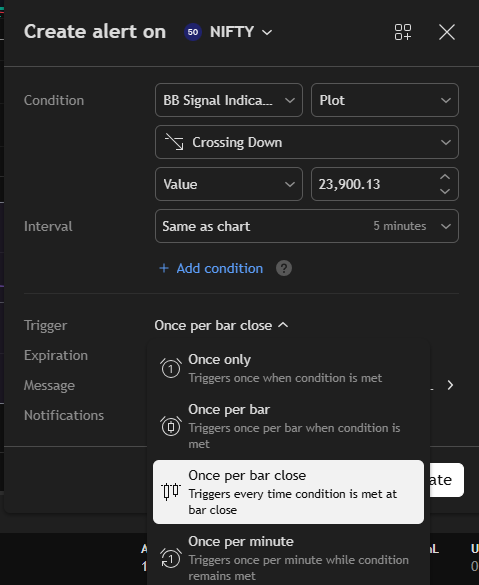
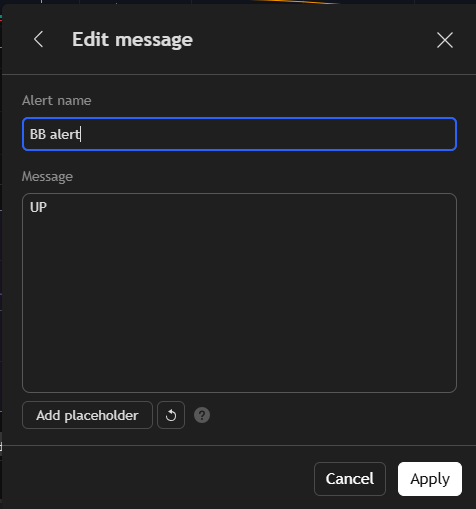
      Step 7: In the Message box, enter -> “UP” (if we made an alert for UPSIDE Execution)
      Enter “DOWN” (if we made an alert for DOWNSIDE Execution).
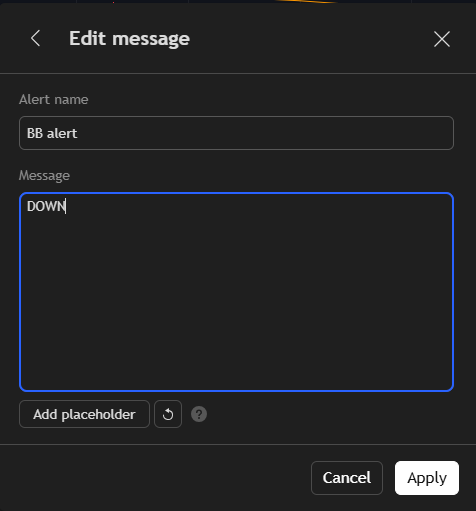
      This is important because the UP signal triggers upside execution.

      Step 8: Now go to the Notifications section -> Enable Webhook URL option -> Paste the copied webhook URL there -> Then save the alert.

      => Now whenever: indicator gives UP signal β†’ upside execution runs

      => Note: To make the UP or DOWNSIDE alert just have to make a change in Step 7.

      => And if you still have some confusion you can refer to the video below: Connection with trading View

Viewing 2 reply threads
×

Start a Discussion

Get help from the AlgoDelta community.

×

Welcome Back!

Enter your email to sign in or create an account. No passwords needed.

⏳

Pending Approval

⚠️

Delete This?

Are you sure you want to delete this? This action is permanent and cannot be undone.

Scroll to Top