Yes sir, you can automate NIFTY Futures trading using AlgoDelta Strategy Order by creating three separate JSON configurations for BUY, SELL, and EXIT signals.
Follow these steps to configure the complete setup.
Step 1: Configure the BUY Side
Open AlgoDelta then go to JSON Bridge -> Generate Syntax -> Strategy Order and configure the BUY side for NIFTY Futures.
In the BUY configuration:
Set transaction_type to BUY.
Set signal_type to UP.
Enable Exit on Opposite Signal so that the existing position is exited when an opposite signal is received.
Generate the corresponding JSON syntax for this configuration.

Step 2: Configure the SELL Side
Now configure the SELL side for NIFTY Futures.
In the SELL configuration:
Set transaction_type to SELL.
Set signal_type to DOWN.
Generate the corresponding JSON syntax for this configuration.

Step 3: Configure the EXIT Side
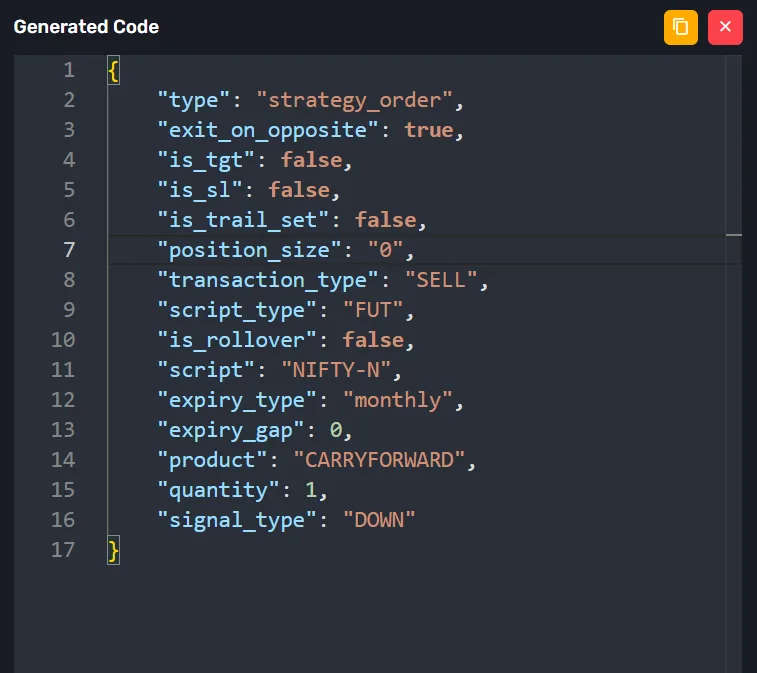
For the EXIT configuration, prepare the JSON with the following parameter:
"position_size": "0" (Manually placed "0" in place of {{strategy.position_size}})
Note: When position_size is set to "0" (string), AlgoDelta will exit all open positions.
For this configuration, the important parameter is position_size: "0", irrespective of the transaction type or signal type.
Generate the corresponding EXIT JSON syntax.
Step 4: Create the BUY Alert in TradingView
Open your TradingView indicator and create an alert for the BUY alertcondition.
Select the corresponding BUY condition and paste the BUY JSON syntax generated from AlgoDelta into the Message field.

Step 5: Create the SELL Alert in TradingView
Create another alert for the SELL alertcondition.
Select the corresponding SELL condition and paste the SELL JSON syntax into the Message field.

Step 6: Create the EXIT Alert in TradingView
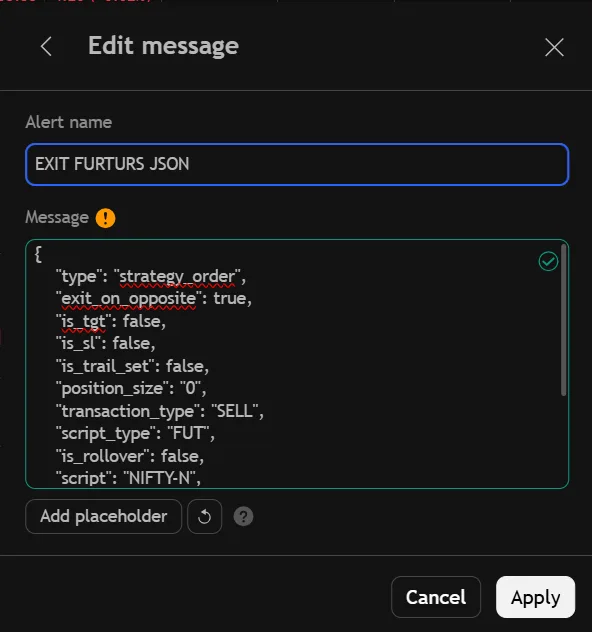
Create the third alert for the EXIT alertcondition.
Select the corresponding EXIT condition and paste the EXIT JSON syntax, containing "position_size": "0", into the Message field.
Step 7: Connect All Three Alerts to AlgoDelta
Copy the webhook URL from AlgoDelta JSON Bridge.

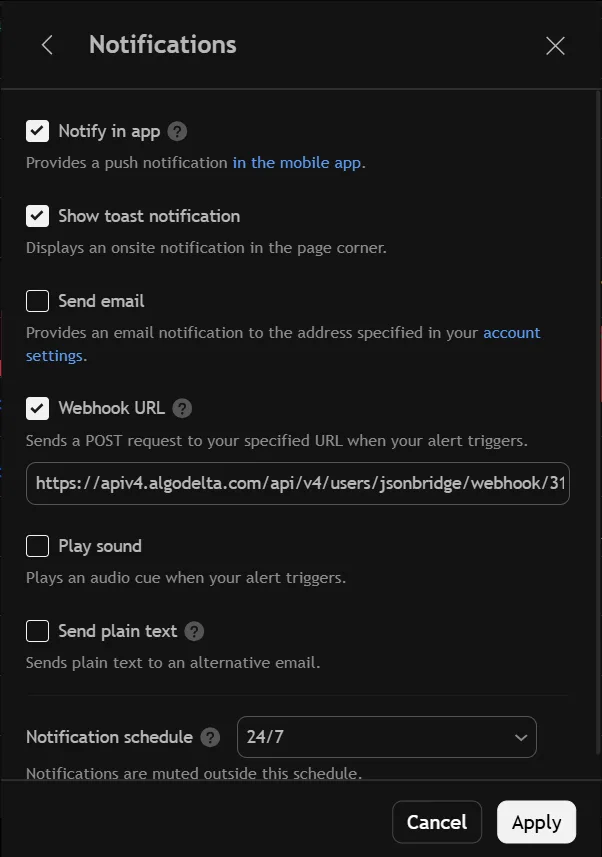
While creating each of the three TradingView alerts, open the Notifications section and paste the same AlgoDelta webhook URL into the Webhook URL field.
Make sure you connect all three alerts to the webhook.
How It Works
Once everything is configured, the workflow will work as follows:
BUY Signal: When the BUY alertcondition is triggered, TradingView sends the BUY JSON to AlgoDelta, and a BUY order is placed in NIFTY Futures.
SELL Signal: When the SELL alertcondition is triggered, TradingView sends the SELL JSON, and a SELL order is placed in NIFTY Futures. Exit on Opposite Signal handles the configured opposite-side exit.
EXIT Signal: When the EXIT alertcondition is triggered, TradingView sends the JSON containing "position_size": "0", and AlgoDelta exits all open positions.
This way, you can automate BUY, SELL, and EXIT signals from your TradingView indicator using AlgoDelta Strategy Order without manually placing orders.
Important: Make sure all three JSON payloads are generated using the correct AlgoDelta configuration and that the NIFTY Futures instrument, expiry, quantity, and product settings are correct. Test the complete setup in paper trading before enabling live execution.