I have a TradingView strategy for NIFTY that generates BUY signals and dynamically calculates the ATM strike based on its conditions.
Whenever a BUY signal is generated, I want to automatically buy the selected NIFTY ATM option with a quantity of 5.
I also have multiple target levels (TP1, TP2, TP3, TP4, TP5, etc.). When each target is reached, I want to exit 1 quantity partially while keeping the remaining position open.
Finally, when an opposite signal is generated, I want to exit the remaining open quantity.
I want to automate this entire process using AlgoDelta JSON Bridge so that the dynamically calculated strike and quantity are passed directly from TradingView to my connected broker or group.
How can I achieve this using Pine Script and JSON Bridge?
Yes sir, you can achieve this using the Custom API functionality available in AlgoDelta JSON Bridge.
You can dynamically generate the required JSON payload in your Pine Script strategy and pass it through TradingView alerts. AlgoDelta will receive the JSON payload and execute the corresponding orders in your connected broker or group.
Follow these steps to configure the complete workflow.
Step 1: Configure Custom API in JSON Bridge
Open AlgoDelta JSON Bridge and navigate to the Custom API configuration.
First connect your JSON Bridge to your Group or Demat Account.
Copy the sample JSON payload provided by the Custom API configuration.
Step 2: Store the Sample JSON in Pine Script
Open your TradingView Pine Script strategy.
Take the sample JSON copied from AlgoDelta and store it in a string variable inside your Pine Script.
You will use this JSON as the base payload and dynamically replace the required values before sending the alert.
For example, you can replace:
Trading symbol / option contract
Strike price
Order quantity
Transaction type
Other required order parameters
Step 3: Dynamically Replace Strike Price and Quantity
Now, take the sample JSON generated from AlgoDelta Custom API and store it in a Pine Script variable.
Here, strike and qty are example values. Replace them with the strike price and quantity calculated by your actual strategy.
Once the JSON is generated, pass it through the alert_message parameter of the relevant strategy.entry() function.
This ensures that TradingView sends the dynamically selected strike price and quantity to AlgoDelta through the alert.
Step 4: Configure Multiple Target Levels with Partial Exits
Now configure your target levels in the Pine Script strategy.
For each target level, create the corresponding JSON payload.
Before sending each payload, dynamically replace the required strike and exit quantity.
Pass the completed JSON through the alert_message parameter of the respective strategy.exit() function.
This way, whenever TP1, TP2, TP3, TP4, or TP5 gets triggered, TradingView sends the corresponding JSON payload to AlgoDelta with the required exit quantity.
Step 5: Configure Opposite Signal Exit
You can also manage the remaining open position when an opposite signal is generated.
Configure your Pine Script strategy to close the remaining position using the appropriate strategy.close() logic.
Generate the corresponding JSON payload with the required contract and remaining quantity, and pass it through the alert_message parameter.
This allows the remaining position to be exited automatically when the opposite signal occurs.
Step 6: Create an Alert in TradingView
Once your Pine Script strategy is configured, open TradingView and create an alert for your strategy.
In the alert configuration:
Select your TradingView strategy.
Select the order fill events.
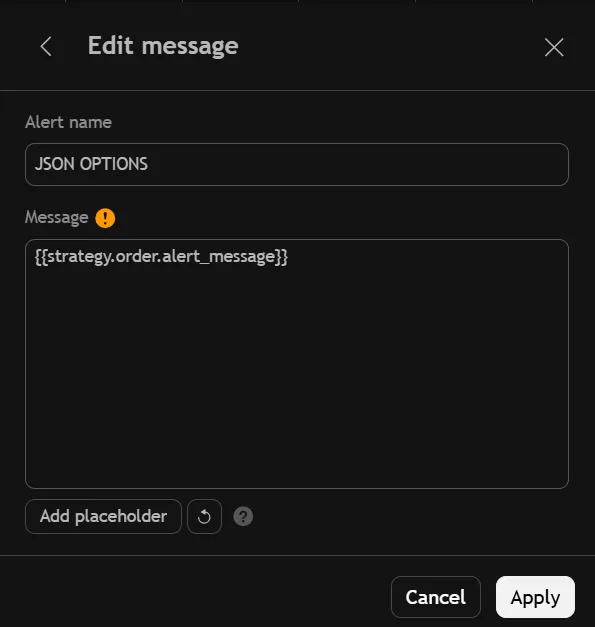
In the Message field, enter the following placeholder:
{{strategy.order.alert_message}}
This placeholder ensures that TradingView sends the dynamically generated JSON payload associated with each strategy order fill.
Step 7: Connect the TradingView Alert to AlgoDelta
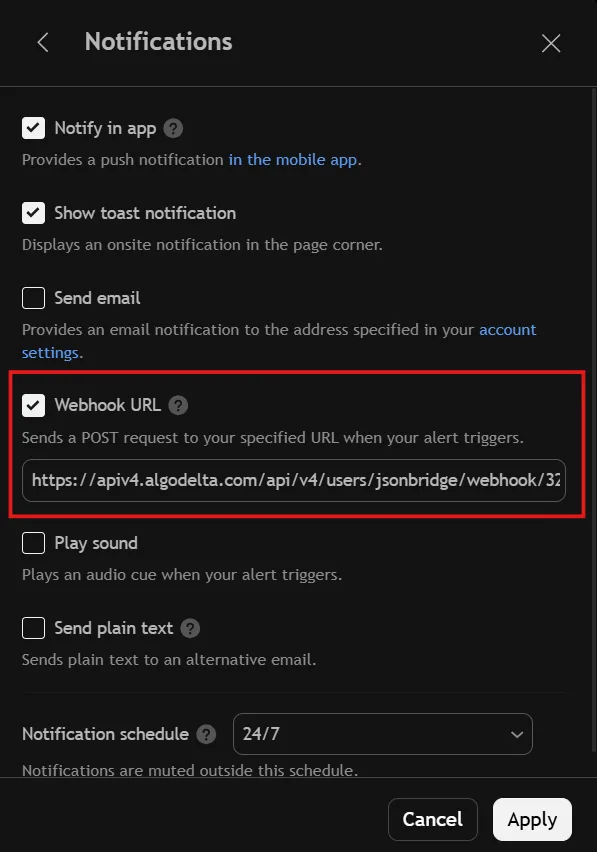
Copy the webhook URL from your AlgoDelta Custom Bridge / JSON Bridge configuration.
Paste this webhook URL into the Webhook URL field under the Notifications section of your TradingView alert.
Save the alert.
How the Complete Workflow Works
Once everything is configured, the complete process will work automatically:
BUY Signal: Your TradingView strategy generates a BUY signal and calculates the ATM strike.
Entry Order: The strategy replaces the strike and quantity in the JSON payload and sends it through alert_message. AlgoDelta receives the JSON and places the BUY order.
TP1 Hit: TradingView generates the TP1 exit alert with quantity 1. AlgoDelta places the partial exit order.
TP2, TP3, TP4 and TP5: The same process continues, with each target generating its own JSON payload and partial exit order.
Opposite Signal: When an opposite signal occurs, the strategy generates the exit JSON with the remaining open quantity, and AlgoDelta executes the exit order.
This way, you can manage dynamic ATM strike selection, entry quantity, multiple target levels, partial exits, and opposite signal exits directly through your TradingView strategy and AlgoDelta JSON Bridge.
Important: Make sure your Pine Script generates valid JSON and that the order quantity and selected contract are correct for every alert. Use the exact payload structure provided by AlgoDelta Custom API. Also, ensure your target exits and opposite-signal logic do not generate duplicate or conflicting exit orders. Test the complete workflow in paper trading before enabling live execution.