Yeah, this confuses many people in the beginning.
After creating the custom bridge, just follow these steps:
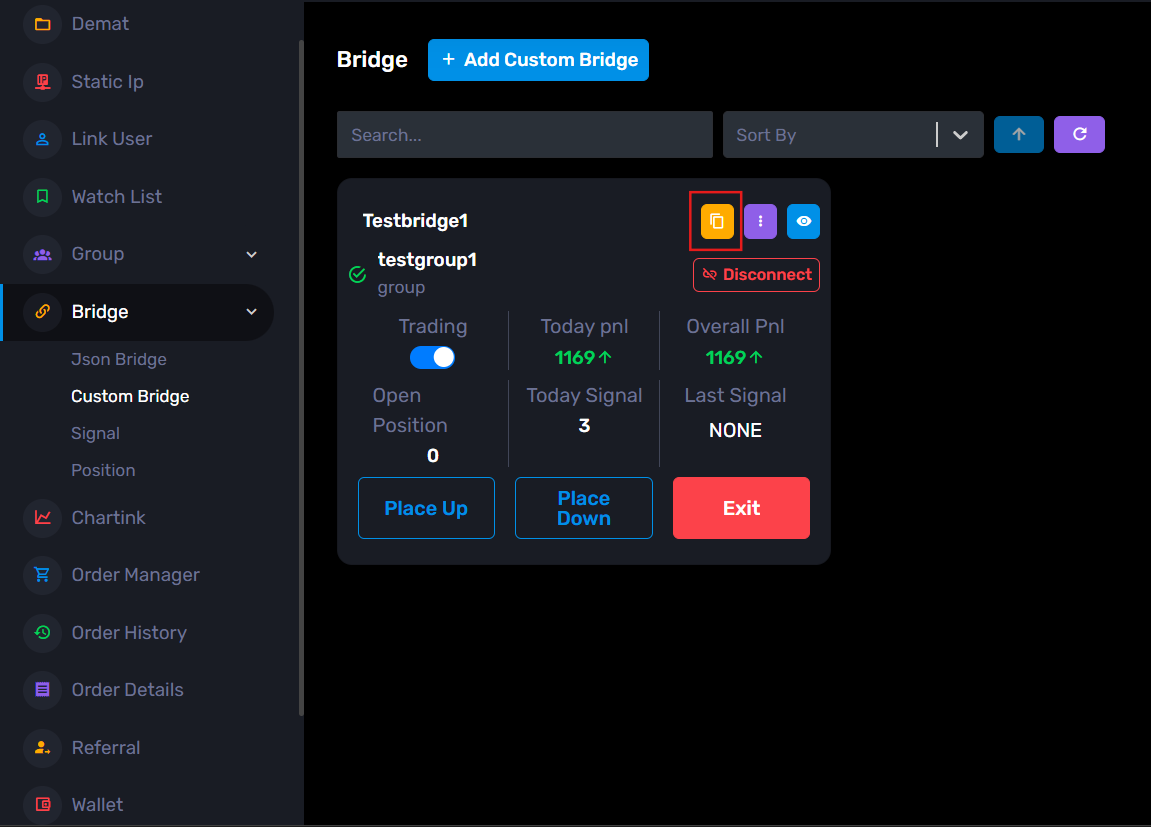
Step 1: In the Custom Bridge page, click the yellow copy icon on the custom bridge page and also you can find the inside bridge at the upper right corner.
You will get the webhook URL copied.
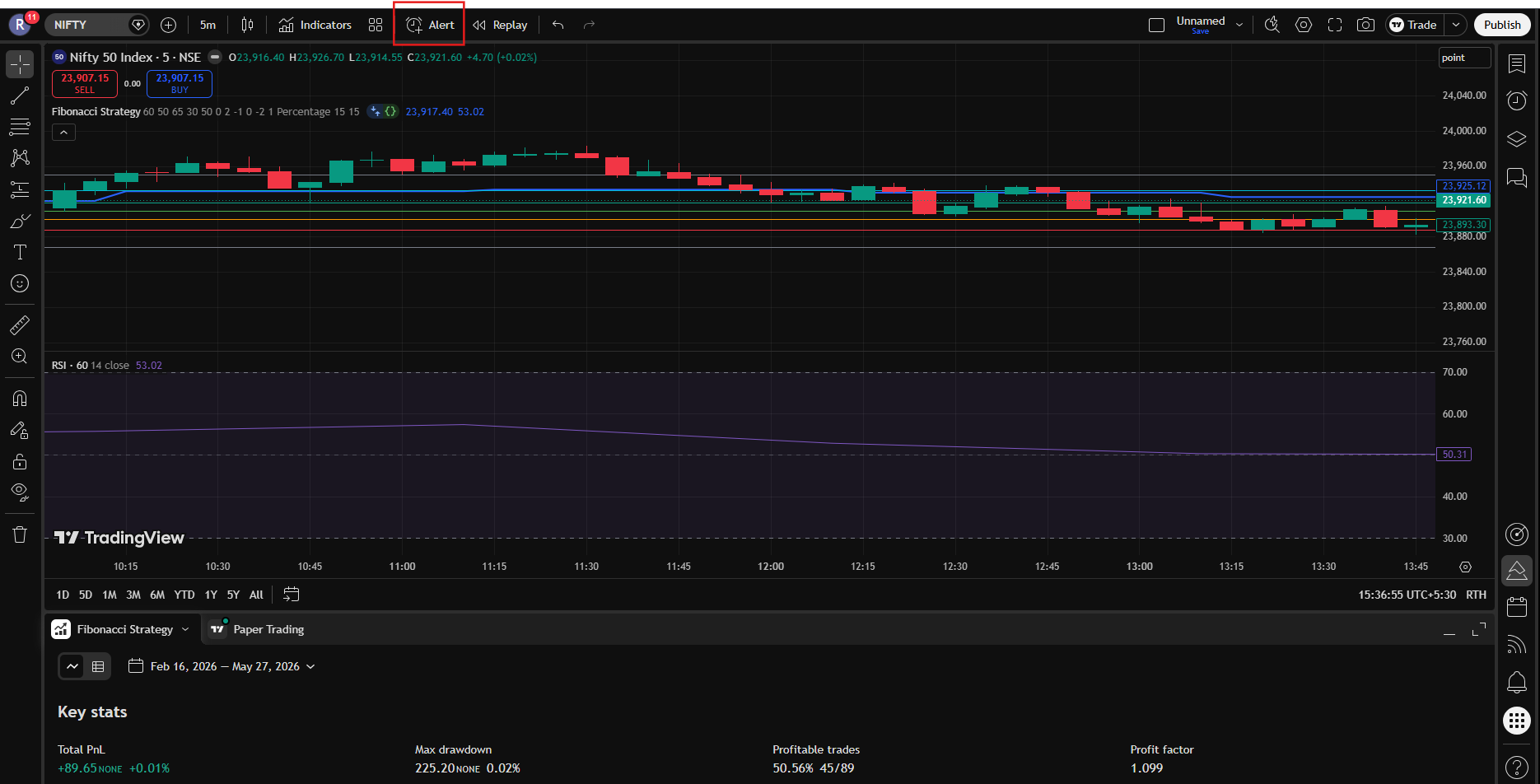
Step 2: Now go to TradingView and open your strategy chart.
Step 3: Click on the Alerts icon (clock icon).
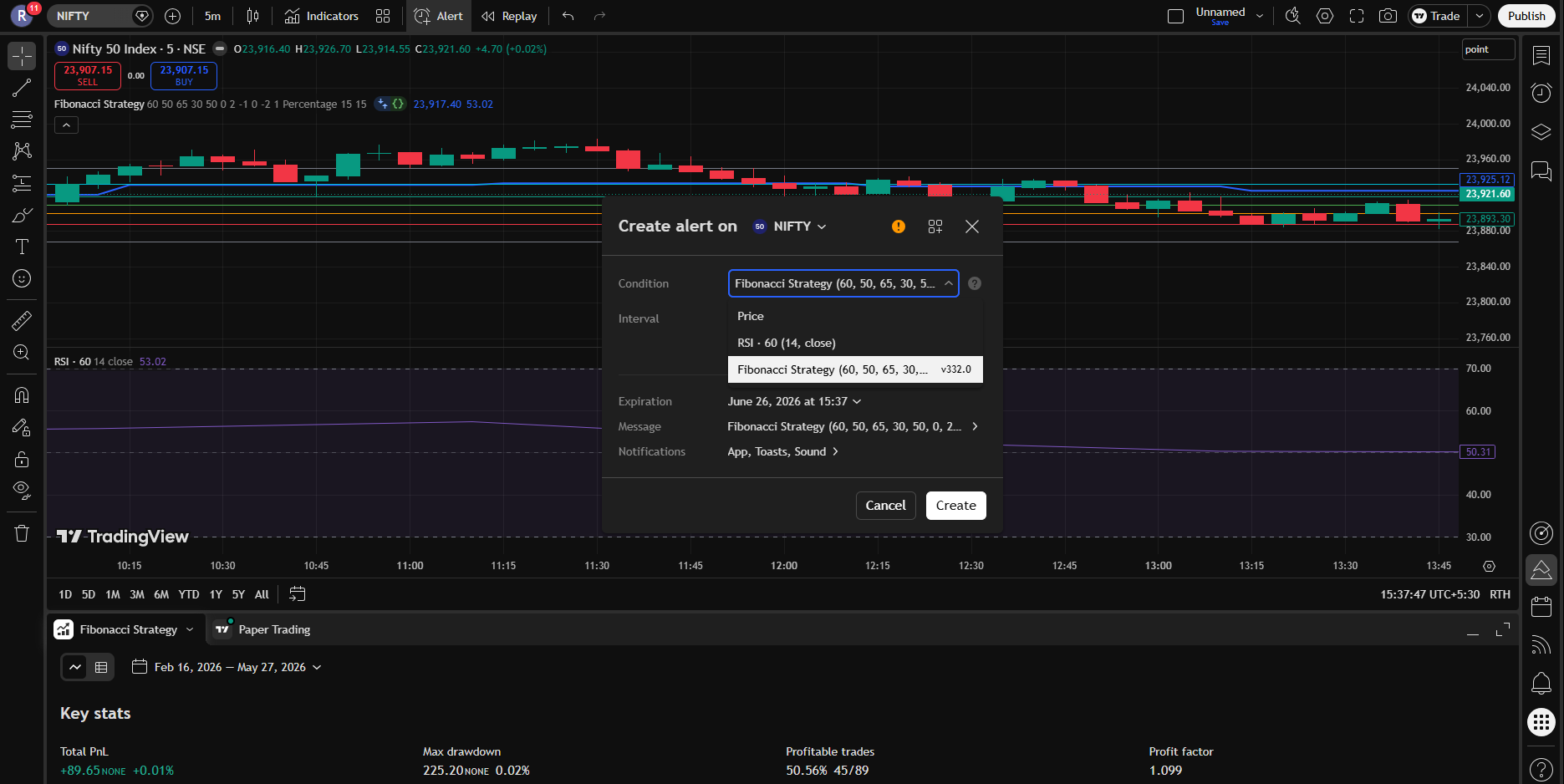
Step 4: In the Condition dropdown, select your strategy.
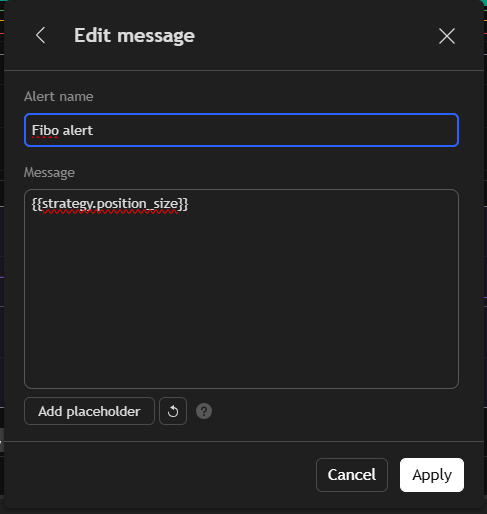
Step 5: In the Message box, keep only this: {{strategy.position_size}}
Step 6: Now go to the Notifications section below.
Enable Webhook URL option
Paste the copied webhook URL there
Step 7: Save the alert.
=> Now whenever:
-> BUY signal comes → upside execution script runs
-> SELL signal comes → downside execution script runs
=> That’s it. Your TradingView strategy is now connected with the bridge
=> And if you have the still some confusion you can refer the below video:
Connection with trading view


 comadmin